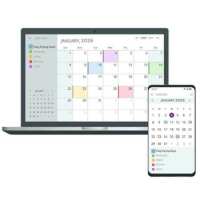
Be prepared for every flag-flying holiday with calendar reminders! Our free downloadable calendar makes it easy to receive notifications for upcoming flag-flying holidays right to your device.
This calendar is available as a .ics file, which is a file stored in a universal format used by several email and calendar programs, including Google Calendar, Apple Calendar, Microsoft Outlook, AOL, Yahoo!, and more! Because all popular calendar applications can use .ics files to add event details to a calendar, .ics files are the most common type of file used to exchange and share calendar information. Read more below for help with installation.
What Holidays Do You Fly the Flag?
For a full list of the holidays on which the US Flag Code recommends flying the American flag, check out our complete list of flag-flying holidays. All of these American flag holidays are included in this downloadable file.
How Do I Import U.S. Flag Holidays to My Calendar?
After adding the calendar to your cart and checking out, you will receive an order confirmation email containing a download link for this calendar. Click the link to download the file.
If you have a calendar application, such as Microsoft Outlook, Google Calendar, or Apple Calendar, already installed and set up on your phone or computer, you can double-click the .ics file from your downloads to automatically import the event details it contains into your calendar.
In the case that you are unable to add the US flag holidays calendar by clicking the downloaded file, you can manually import it into your calendar application of choice.
To import the file to Google Calendar on a computer, follow these steps:
Open Google Calendar on a computer in your usual browser. In the top right corner, click the gear icon.
In the drop-down menu, click "Settings."
On the page that opens, scroll down the navigation menu on the left-hand side and click "Import & Export."
New settings options should open. Click the "Select file from your computer" button and choose the .ics calendar file from your downloads.
Select which calendar to which you want to add the flag-flying holidays, then click the "Import" button.
If you are using a different calendar application or are experiencing any issues, please contact our customer support team. We’d love to help!
This file is a downloadable product, not a physical product.