Login
Start Free Trial Are you a business? Click Here

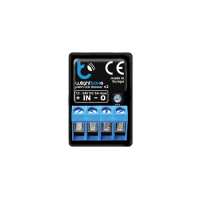
Single Channel Wi-Fi LED Controller ~ wLightBoxS by BleBox Reviews

5 Rating 3 Reviews
Read Wired4Signs USA Reviews
Visit Product Page

Phone:

(865) 306-7402

Email:

info@w4susa.com

Location:

7669 Clinton Highway,
Powell
Tennessee
37849

Does what it says on the tin. Very small, easy to wire up, and easy to set up in the app. Working great with a proxiBox for control. Setting up "Control another device" actions in the app (when setting up another device to control this one) unfortunately requires knowing what "API call" to use. Being a software dev, what to put was easy for me to figure out, but anyone who doesn't know how a REST API works is going to have a hard time. These are the common ones for controlling this (use the text inside the quotes): - Toggle off/on: "/s/offon/last" - Turn on, full brightness: "/s/FF" - Turn on, last used brightness: "/s/onlast" - Turn off: "/s/00" To find the full docs for all the commands: - Open https://technical.blebox.eu/ - Under the "APIs list by API type" heading, find the "wLightBox" item and open the link at the top of the list. - The section you need for the "Control another device" action is titled "Control with GET". Each command is listed, usually with a description. The actual text to put in the "API call" box in the app is next to the green box labeled "GET". This is in the right sidebar on desktop, and underneath the description on mobile. Example command: "/s/offon/last" ("Toggle (ON/OFF last state)" for wLightBox devices) If there is text in curly braces (e.g., "{channels}"), you must replace this with a value as per the command description. If you need any assistance, there is always the live chat on the website.
Helpful Report
Posted 1 year ago
Does what it says on the tin. Very small, easy to wire up, and easy to set up in the app. Working great with a proxiBox for control. Setting up "Control another device" actions in the app (when setting up another device to control this one) unfortunately requires knowing what "API call" to use. Being a software dev, what to put was easy for me to figure out, but anyone who doesn't know how a REST API works is going to have a hard time. These are the common ones for controlling this (use the text inside the quotes): - Toggle off/on: "/s/offon/last" - Turn on, full brightness: "/s/FF" - Turn on, last used brightness: "/s/onlast" - Turn off: "/s/00" To find the full docs for all the commands: - Open https://technical.blebox.eu/ - Under the "APIs list by API type" heading, find the "wLightBox" item and open the link at the top of the list. - The section you need for the "Control another device" action is titled "Control with GET". Each command is listed, usually with a description. The actual text to put in the "API call" box in the app is next to the green box labeled "GET". This is in the right sidebar on desktop, and underneath the description on mobile. Example command: "/s/offon/last" ("Toggle (ON/OFF last state)" for wLightBox devices) If there is text in curly braces (e.g., "{channels}"), you must replace this with a value as per the command description. If you need any assistance, there is always the live chat on the website.
Helpful Report
Posted 1 year ago
Had a custom bar lighting project. Gilmar was incredibly knowledgeable and helpful, even being willing to speak to my electrician to clarify an installation question on the lighting kit they provided us. Very responsive to email and provide above and beyond service - even after the purchase is made. All of that on top of the fact that the lighting is top notch, it took our bar to the next level. Highly recommend! Thank you Gilmar and W4S!
1 Helpful Report
Posted 1 year ago
Thanks for the kind words Brittnee! We're delighted to hear how pleased you are with the results of your lighting project!
Posted 1 year ago